Java is still one of the most widely used programming languages for beginners, students, and working professionals. If you want to run a Java program without installing any heavy IDE, using the Command Prompt (CMD) is the fastest and cleanest method. This guide explains what you need, how it works, when to use CMD, when to avoid it, and the exact steps with zero unnecessary words.
What Is Command Prompt Used for in Java?
The Windows Command Prompt lets you:
- Compile Java files
- Run Java programs
- Set Java PATH
- Quickly test simple code without an IDE
CMD is lightweight, fast, and ideal for learning the basics of Java execution.
When Should You Use CMD to Run Java Programs?
Good Use Cases
- Learning core Java basics
- Running small practice programs
- Testing Java logic without IDE
- Low-RAM laptops where IDEs lag
When to Avoid CMD
Avoid CMD for:
- Large enterprise projects
- Multi-file Java applications
- GUI-based or Maven/Gradle projects
In such cases, full IDEs like IntelliJ IDEA or Eclipse are better.
Requirements Before Running Java in CMD
You must have:
- JDK (Java Development Kit) installed
- JAVA_HOME and PATH correctly set
- A Java file saved with .java extension
Step-by-Step Guide — How to Run a Java Program in Command Prompt
This is the clearest and most accurate method followed by professionals.
Step 1 — Install JDK
- Download and install the latest JDK from Oracle or OpenJDK.
- During installation, select “Add to PATH” if available.
Step 2 — Verify Installation
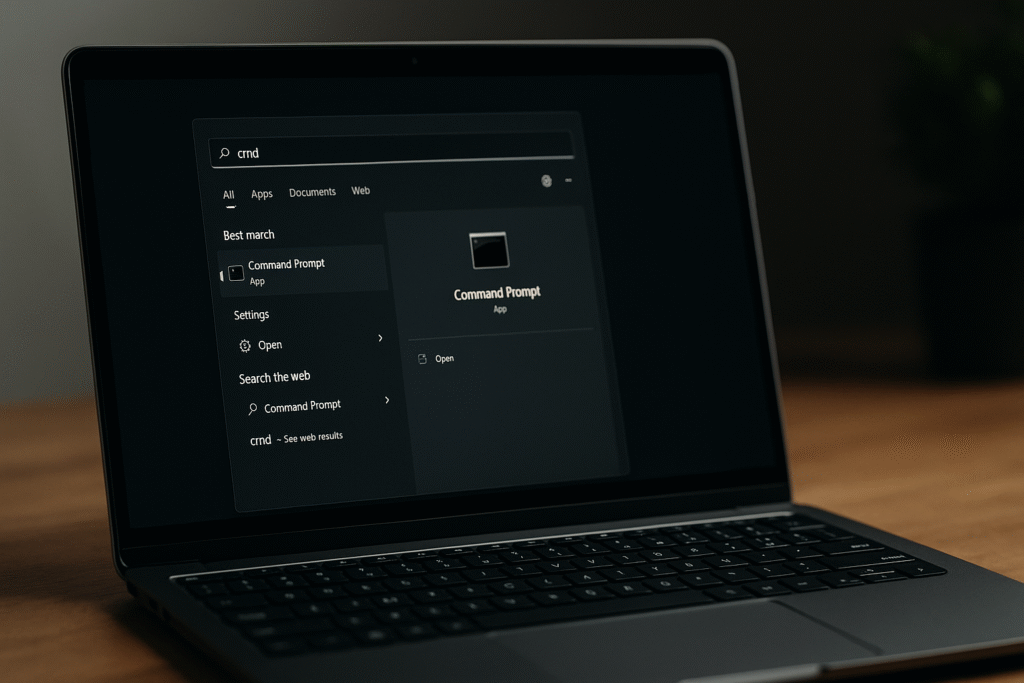
Open CMD and type:
java -versionjavac -versionIf both commands show a version, Java is installed correctly.
Step 3 — Create Your Java Program
Example: HelloWorld.java
public class HelloWorld {
    public static void main(String[] args) {
        System.out.println("Hello, Java!");
    }
}
Save this file in any folder (e.g., Desktop or D Drive).
Step 4 — Open CMD in the File Location
Use one of these methods:
- Navigate manually using the
cdcommand - OR open CMD directly from File Explorer path bar by typing cmd
Example:
cd DesktopStep 5 — Compile the Java File
Run:
javac HelloWorld.java
If no error appears, the program compiled successfully, and a new HelloWorld.class file is created.
Step 6 — Run the Program
Execute:
java HelloWorld
Output:
Hello, Java!Common Errors & Quick Fixes
1. ‘javac’ is not recognized
Reason: Java PATH not added.
Fix: Add JDK’s bin folder to PATH via System Environment Variables.
2. Class name and filename mismatch
Example error:
class HelloWorld is public, should be declared in a file named HelloWorld.javaFix: File name and class name must be identical.
3. Wrong directory
Fix: Ensure you are in the same folder where the Java file is saved.
Is Running Java in CMD Necessary?
Yes—if you want:
- Clean understanding of how Java works internally
- Fast execution without IDE load
- Perfect practice setup for beginners
Not necessary for:
- Advanced projects
- Large frameworks
- Android or Spring Boot development
Final Summary
Running Java through Command Prompt is the simplest, lightest, and most beginner-friendly method. You only need:
- JDK
- PATH correctly set
- A .java file
- CMD commands:
javacandjava
This method is completely safe, standard, and recommended for learning.
Some more you might like